Role
Solo UI Designer
|
Category
Mobile & Desktop
|
Approach
iOS Design Guidelines
|
Duration
4 months
|
Tools
Figma
|
For my Prototyping II class at Kennesaw State University, I was tasked to create a variety of UI designs that implement advanced Figma prototyping techniques. The following three projects are a showcase of my prototyping skills as well as my visual design skills. Each section of this page will outline the details of the corresponding project, including the tools and techniques used to develop the designs.
I. UI Design
For my first project, I designed four distinct UI screens using Figma. Each interface features unique text, color, and grid styles. Text styles are used for a variety of typefaces and font weights across each design, and color palettes are customized for each theme. Each design is laid out with a custom 8-pt grid style to ensure perfect alignment of elements. For a realistic feel, status bars and home indicators are included for each design respective to their device.

Four UI Styles
To maintain consistent file hygiene, all layers and styles were given descriptive names and organized into logical groups.

Styles and File Hygiene of iPad Design
Auto Layout
"Auto Layout" functionality in Figma played a pivotal role in maintaining responsive designs across various screen resolutions. With auto layout, a design element can adapt dynamically to the size of its container. The following is a demonstration of how Auto Layout was used in this project.

Auto Layout Demo for MacBook Design
Redlining
"Redlining" is a technique that involves annotating a UI design with lines to represent the exact spacing between design elements. Redlining improves the design-to-development hand-off while enhancing visual coherence. The following design for Bulletin was redlined in alignment with the 8pt-grid style used in the design.

Redlining Example for iPhone Design
Figma File
Explore the "01. UI/Auto Layout Assignment" section of the Figma file to view the text styles, color styles, grid styles, auto layout, and redlining in action.
II. Using Variables
Variables are objects that can store a single value or multiple values. In Figma, variables store reusable values, including color values, numbers, strings of text, and boolean values. By storing these values as variables, they can be applied to all kinds of design properties and prototype interactions. The value of a variable can also reference another variable, making it easier to update a design system.
For my second project, I demonstrate my use of variables in Figma by creating a single UI design for a music player implemented across two different viewports (tablet and mobile) and four different color modes (light/dark & simple/sharp). In total, I designed 8 screens across 2 sections. Each screen was designed on an 8-pt grid and utilized auto layout.

Mobile Viewport
|

Tablet Viewport
|
To establish a functional design system, I created variables and organized them into collections: Primitives, Tokens, and Viewports. I’ll explain the purpose and use case of each collection in the following sections.
Primitives
The Primitives collection of variables provides the foundational elements of the design system, containing the basic color, spacing, and radius values. For the color variables, I used Material Design 3's theme builder tool to generate an accessible color palette with high contrast. I assigned numerical values to each color based on tone. I then grouped the colors by use case: surface colors (used for backgrounds and containers) and primary colors (used to establish brand identity and emphasize key actions/information).

Primary and Surface Color Variables
For spacing, I utilized the 8-pt grid. I created six number variables, which incrementally increased by 8. Each number variable was named corresponding to its value. For example, the spacing variable for 8pts was named "1", and the spacing variable for 16pts was named "2."

Spacing and Radius Number Variables
For radius, six number variables were created in multiples of 8pts. The radius variables were named to indicate the corner-roundness of elements. For example, the "sm" radius variable has a value of 4pts and is slightly rounded, whereas the "xl" radius variable is much more rounded with a value of 32pts.
Tokens
The Tokens collection inherits variables from the Primitives collection to establish guidelines for color and sizing. The Token variables are logically named and grouped to convey the proper use case for each variable.

Token Variables Inherit Values From Primitive Variables
Viewports
The Viewports collection contains instructions for how the design will adapt depending on screen size. In this design, some elements require different widths for mobile and tablet displays. Applying width variables to these elements let them seamlessly adapt across the design.

Viewport Width and Height Number Variables
Switching Modes
With variables, this design can easily adjust to different viewports and themes. I used variables to create two different viewport modes (tablet and mobile) and four different color modes (light/dark & simple/sharp). These modes can be activated with a single click in the Figma design environment.

Switching Modes with Variables
Components
Components were created for repetitive elements in this design to improve the consistency and efficiency of the design system. For frequently used components with many unique attributes, I applied component properties. Component properties allow specific attributes of a component to be defined. I established component properties for certain components to create a list of quickly editable attributes and facilitate the customization of multiple instances.

Component Properties
Figma File
View the variables and modes of this design in my Figma file. Visit the "02. Variables Assignment" section to see my use of color and spacing variables, auto layout and component properties.
III. Final Project
For my final project, I combined all the techniques I learned in class to develop a prototype online-ordering system for my favorite Venezuelan restaurant, Cylantros.
Cylantros does not have a publicly available brand guide. Rather than designing from scratch, I followed the branding of their current website and considered how to seamlessly incorporate my design into their current system. I built this Figma prototype to represent the user's key path of starting, editing and completing an online pickup order using the Cylantros website for desktop.
Components
I created components for this design since there were many repeated elements, such as the menu items, location cards, and website footer. Depending on the variable interactions required for certain elements, I applied either variables or component properties to my components. Due to Figma limitations, variables and component properties could not be applied to the same design attribute.

Components Used - Website Footer, Menu Items, Location Cards
I also used components to incorporate various visual effects into my design. For example, components were used to create status indicators like checkboxes and hover effects for button, links and cards.

Components Used - Navigation, Icons, and Hover Effects
Select a Location
When placing an online order at a restaurant with multiple locations, it's important for the user to have a way to select their preferred location. To design the location feature, I created string variables to store the location (city) of the restaurant and the restaurant's address. Next, I created a "location-card" component to represent each of Cylantros' three locations: Kennesaw, Woodstock and Roswell.

String Variables
I organized these location cards into a side menu that opens when the user clicks the "edit location" menu bar at the top of the screen. When a location card is selected, the two string variables set their values to the corresponding location's city and address. The string variables are applied to the text in the edit location menu, so the user is always aware of their currently selected location.

Set Variable Interaction - Choose Location
Add Menu Items
The user can browse the "Arepas" category of the menu to add items to their cart. For the sake of simplicity, I used variables to set the limit of cart items to a maximum of three items. I created variables to store and manipulate the values of the number of cart items, the cart item name, and the cart item price.
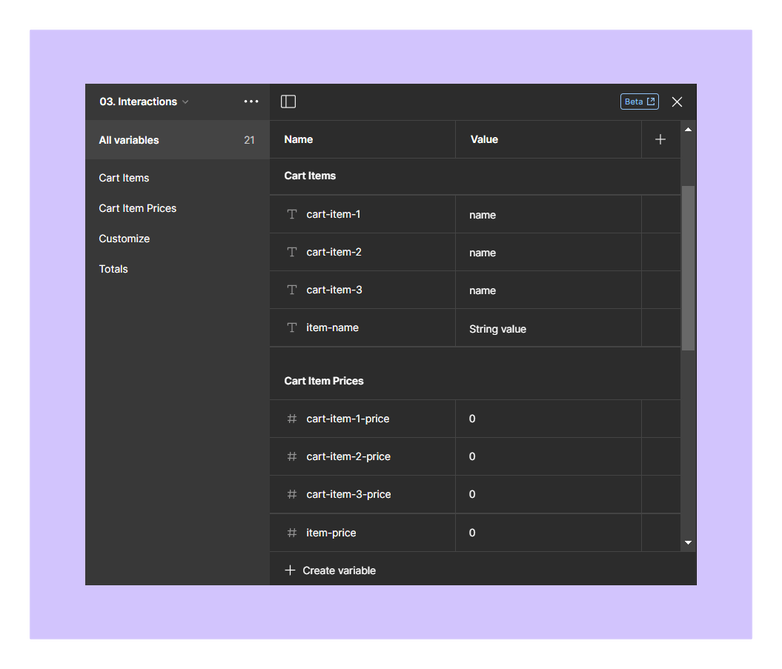
Cart Item Variables
For the Arepas, there are a total of 20 unique menu items. Each menu item card has a unique variable interaction where the values for each cart item (amount in cart, item name, item price) update when their "add to cart" button is clicked. The shopping cart icon updates with the value of "amount-in-cart", and the cart item names and prices are updated across the shopping cart pages and modals with the values of ""item-name", and "item-price", respectively.

Variable Interactions - Add to Cart

Add to Cart Walkthrough
Customize Menu Items
The menu items at Cylantros come with a variety of toppings, so users need a way to customize their orders with their preferred ingredients. A customization feature was built into this Figma prototype with the use of variables. To create a list of customization options for a menu item, I created boolean variables that set each customize option to "true" when clicked.

Customization Variables
I applied conditional statements to the "add to cart" button to check which customization options were selected and add them to the order summary. I also included conditional statements to reset the variables for each new item added to the cart.

Variable Interactions - Customize Menu Item

Customization Walkthrough
Review & Submit Your Order
A preview of the order summary is displayed in an overlay when the user clicks on the cart icon in the navigation bar. The cart item name and cart item price variables are applied to this overlay, and an empty number variable stores the order total. Depending on the number of items in the cart, the "order subtotal" variable is set to equal the sum of all cart items. From here, the user can either continue to their cart or empty the cart and reset all variables. I chose to limit the cart to three items, so I created three cart modals to represent each shopping cart variation (one, two, and three items).

Variables for Order Summary
Once the user clicks "view cart", they are presented with a full screen view of their cart summary, including the menu item names, their prices and the order subtotal. From here, the user can choose to return to the menu or checkout. When ready to checkout, the order subtotal is used to calculate the value for the "sales tax" variable and the "order total" variable. These totals are applied to the order summary in the checkout screen.

Order Summary Walkthrough
Figma File & Prototype
Please explore this project via the file or prototype. View the variable interactions, UI design, use of components, styles, auto layout, and more in the "0.3 Final Project" page.
Key Takeaways
After completing the projects in this class, my prototyping and UI design skills improved a lot. Here are a few things I learned from the experience:
- Variables are a useful tool for designing dynamic and easily updatable systems in Figma. Once the architecture for variables is established in the file, it's easy to implement changes over time to colors, spacing, radius and more.
- It's important to create components for all design elements that are frequently reused or interchanged. This allows for easy modification and adaptation of your design system.
- Designing with variables and auto layout highlights the importance of responsive design. Design elements should be easily adaptable for different screen sizes to ensure a seamless user experience.
- The ability to incorporate variable interactions and conditional logic into Figma prototypes is a great way for designers to collaborate with developers. As a designer, you can make more informed design decisions when you understand how the interface should function behind the scenes.